Golden Star Casino Mobile Experience in Australia
 Available in AU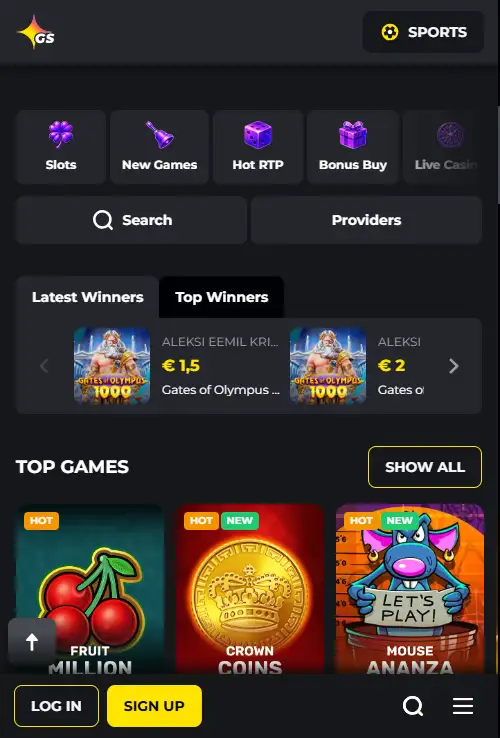
Contents
Golden Star mobile Australia
Golden Star works on phones through its responsive website and an official installable web-app route. The current Golden Star installation page gives Android users a browser-based “Install app” process, while iPhone users can add the site to the Home Screen from Safari. That is different from a conventional native casino app distributed through Google Play or Apple’s App Store. We did not verify a current native Golden Star listing in either major store.
For an Australian reader, the useful distinction is therefore not simply “app or no app”. Golden Star has a mobile interface that can be opened directly in a browser, and it also provides a Progressive Web App style shortcut that launches from the home screen. The account, games, cashier and support functions remain web-based. This matters because an installable website can look and behave much like an app while still being delivered by the browser rather than an app store.
Responsive browser access is the core mobile experience
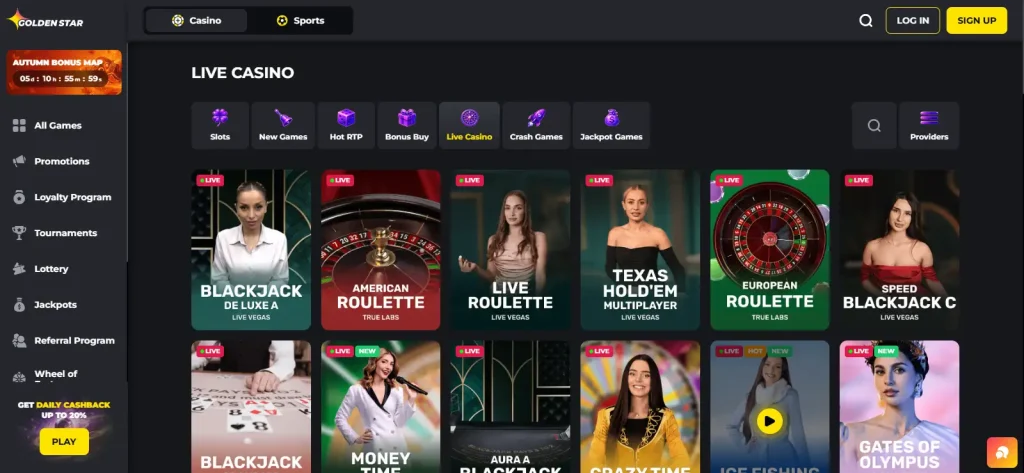
The simplest way to use Golden Star on a phone or tablet is to open the official website in a modern browser. The interface adapts to smaller screens instead of requiring a separate mobile domain or a downloaded executable. Navigation is condensed for touch use, game tiles reflow into narrower grids, and account controls remain available from the same web account.
This model has two practical advantages. First, there is no separate software package to keep updated: the interface loads the current site version whenever the browser opens it. Second, the same account credentials are used across desktop and mobile. That avoids the confusion that sometimes comes with separate native apps, regional app-store listings or outdated APK files.
It also means that browser behaviour matters. Safari on iOS and Chrome on Android are the clearest routes because Golden Star’s current installation instructions are written around those browsers. If a page does not render properly, checking browser updates, clearing stale site data or opening a fresh session is more relevant than looking for an app-store update.
Golden Star’s installable web app is not a native store app
Golden Star currently publishes an installation page for Android and iOS. On Android, the official instructions tell users to open Golden Star in Chrome, use the three-dot menu and choose “Install app”. On iOS, the equivalent route is through Safari and the Home Screen option. The result is a home-screen icon that opens the casino in an app-like window.
This is best understood as a Progressive Web App or installable website. A PWA can provide a full-screen launch experience, a persistent icon and a touch-oriented interface, but the underlying service remains web content. It is not proof that Golden Star has passed Apple App Store or Google Play review, and it should not be described as a native iOS or Android application unless a current official store listing can be verified.
Practical distinction: browser access and a home-screen web app are verified. A current native App Store or Google Play listing was not verified.
How to add Golden Star to an Android home screen
- Open the official Golden Star domain in Chrome on the Android device.
- Use Chrome’s menu in the top-right corner.
- Select the installation or home-screen option presented for the site.
- Confirm the prompt and check that the new icon opens the same official web service.
The exact wording of Chrome menu items can change between Android versions, but the principle is stable: the browser installs a web shortcut or PWA shell rather than downloading a separate casino APK from a third-party source. That distinction is important for security. An unrelated APK offered by a mirror site should not be treated as equivalent to Golden Star’s own browser-based installation route.
If the installation choice does not appear, the casino is still usable as a normal responsive website. The home-screen icon is a convenience layer, not a requirement for accessing the mobile interface.
How the iPhone and iPad route differs
On iPhone and iPad, Golden Star’s web-app style access is tied to Safari’s Home Screen workflow. The user opens the official site in Safari, uses the Share menu and chooses the option to add the page to the Home Screen. The resulting icon launches the web experience in an app-like format.
This should not be confused with installing software from Apple’s App Store. There is no need to search for a similarly named casino app, and a third-party listing with a matching or similar name is not automatically an official Golden Star product. The safer verification point is the official Golden Star domain and its own installation instructions.
Games on mobile: use the same catalogue, but expect a smaller viewport
Golden Star’s main catalogue is organised into categories such as slots, live casino, crash games and jackpot games. Those sections can be reached from the mobile interface as part of the same web service described in the Golden Star Games and Pokies for Australian Players. A phone does not create a separate game library in the editorial evidence we reviewed.
What does change is presentation. Large desktop grids become shorter rows, filters and menus may sit behind compact controls, and live dealer tables have less screen space for side panels. For pokies, touch controls generally fit naturally on a phone, while live casino interfaces can feel denser because video, betting controls and table information share the display.
Game availability can also depend on provider rules and jurisdiction rather than screen size. A title that is restricted for Australia does not become available merely because the user changes from desktop to mobile. Device compatibility and geographic availability are separate questions.
Cashier and payments remain account functions
Golden Star’s payment flow is part of the same account environment on mobile. That means the relevant questions are payment-method availability, currency, minimums and any verification requirement, not whether the transaction is initiated from an app or browser. The Golden Star Payment Methods in Australia covers those details separately so this mobile page does not duplicate cashier limits.
A smaller screen can make it easier to overlook method notes, limits or verification prompts. Before confirming a transaction, review the currency, selected method and any displayed fee or minimum on the live cashier screen. Mobile convenience should not replace checking the transaction details shown for the account.
Support access on a phone
Golden Star lists 24/7 live-chat support, which is particularly relevant on mobile because chat can be opened without leaving the device used for the account. Email support is also listed in the site’s support materials. If a browser session, login or payment page behaves unexpectedly, support can help distinguish an account-specific issue from a display problem.
Keep screenshots free of sensitive details if you need to document a mobile problem. Do not expose passwords, full card numbers, security codes or identity-document data in a general chat unless the official support process specifically requires a secure upload route.
Mobile account access does not override country rules
A responsive site or PWA changes the interface, not the account policy. Golden Star’s current Registration Procedure lists Australia among countries from which it does not accept new players. That restriction is relevant whether the visitor arrives from a desktop browser, a phone browser or a home-screen web app.
This is the same distinction explained in the Golden Star Registration and KYC for Australian Users: technical access to a webpage is not the same as confirmed eligibility to open an account. Readers should not use mobile installation steps as a way to bypass a country restriction or other account rule.
Security checks for an installable casino website
- Start from the official domain. Do not install a shortcut from a copied or lookalike site.
- Prefer the browser route supplied by Golden Star. It avoids unverified APK packages and similarly named third-party apps.
- Check the address before signing in. A home-screen icon should open the same official service you verified in the browser.
- Protect the device lock. An app-like icon can make account access quicker, so the phone itself should have an effective PIN, password or biometric lock.
- Avoid storing sensitive screenshots. Cashier and KYC screens can contain personal and financial information.
When the mobile site feels different from desktop
Most differences come from responsive layout rather than a separate product. Menus collapse, promotional panels stack vertically, and some controls appear only after tapping an icon. If a function seems missing, first look for a collapsed account or navigation menu. Rotating a device can also change the usable layout for live games or tables.
Connection quality has a larger visible effect on streamed live casino content than on static account pages. A slow connection can delay video or game asset loading even when the account itself is working normally. That is a performance issue, not evidence that a different mobile app is required.
What Golden Star’s mobile setup offers without a verified native app
Golden Star’s current mobile setup is best described as a responsive browser service with an official installable web-app option. Android users can install it from Chrome and iOS users can place it on the Home Screen through Safari, but we did not verify a native App Store or Google Play listing. The mobile interface reaches the same broad account, game, cashier and support areas as the web service, while the practical differences are screen size and navigation density. For Australian readers, remember that mobile access does not change the separate account-eligibility and regulatory questions covered elsewhere on this site.
This material was created by the Golden Star Australia Guide team.
Related posts
Golden Star Withdrawals in AUD: Minimums, KYC and Limits
Golden Star Pokies: Slots, Jackpots and Crash Games